


If you’ve ever felt like ChatGPT, Claude, or Gemini gives you technically correct but somehow off responses, you’re not alone. The problem isn’t the AI—it’s that you haven’t told it who you are or how you think. Custom instructions are the solution, but most people either skip them entirely or fill them with vague platitudes that the model ignores.
Let’s fix that.
This guide breaks down the architecture of AI instructions, explains the critical difference between system prompts and custom instructions, and gives you a practical framework for configuring your AI tools to actually work the way you need them to.
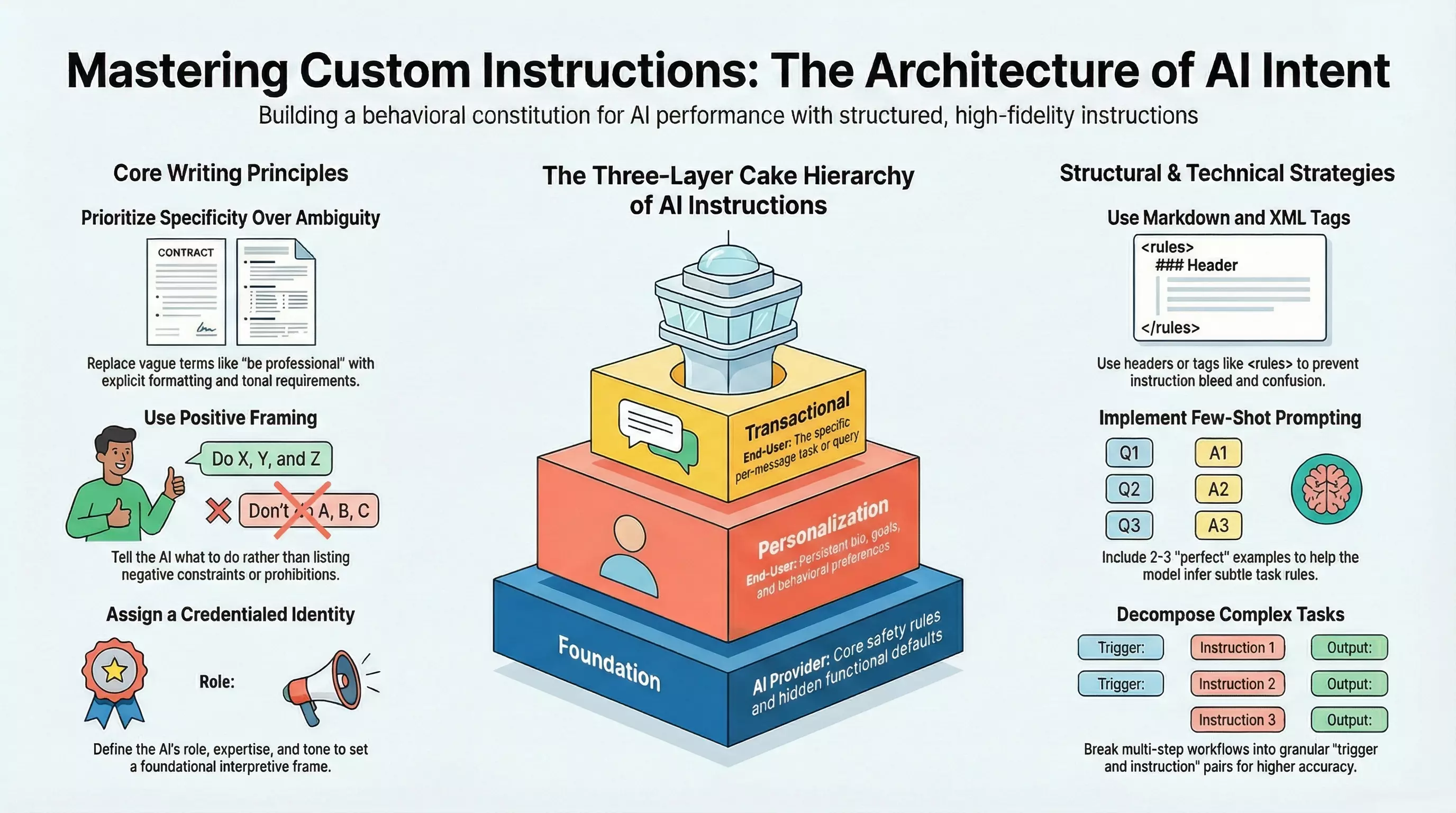
The Three-Layer Cake: How AI Instructions Actually Work
Before you can write effective custom instructions, you need to understand how they fit into the bigger picture. Modern AI assistants don’t just respond to your messages—they operate within a layered hierarchy of instructions that determine everything from their personality to their safety boundaries.
Think of it as a three-layer cake:
Layer 1: Foundation (Provider Defaults)
At the bottom sits the AI provider’s hidden system prompt. This includes core safety rules, tool access permissions, and functional constraints you never see. OpenAI, Anthropic, and Google all embed their own guardrails here. You can’t modify this layer—it’s hard-coded.
Layer 2: Personalization (Your Custom Instructions)
The middle layer is where you come in. Custom instructions, memory settings, and project configurations live here. This is persistent context that applies to every conversation, shaping how the AI interprets your requests.
Layer 3: Transactional (Your Current Message)
The top layer is your actual prompt—the specific question or task you’re giving the AI right now. It’s ephemeral, existing only for the current turn.
Here’s the critical insight: position determines priority. The foundation layer generally wins conflicts (you can’t override safety rules), but your custom instructions shape how everything above them gets interpreted. A well-crafted personalization layer transforms every interaction without you having to repeat context.
System Prompts vs. Custom Instructions: What’s the Difference?
These terms get thrown around interchangeably, but they serve different purposes.
System Prompts are technical API-level instructions that developers set when building applications. They define the AI’s role, constraints, and behavior at a foundational level. If you’re using the ChatGPT API directly, you send a system message (or developer message in newer models) that establishes the assistant’s identity before any user interaction occurs.
Custom Instructions are the consumer-facing version—the settings you configure in ChatGPT’s UI, Gemini’s preferences, or Claude’s project settings. They get translated into system-like messages behind the scenes, but they’re designed for end users, not developers.
The key differences:
| Aspect | System Prompt | Custom Instructions |
|---|---|---|
| Audience | Developers building apps | End users configuring AI |
| Access | API only | UI settings |
| Persistence | Set per API call | Persistent across sessions |
| Visibility | Hidden in production apps | User-controlled and editable |
| Character Limits | Model-dependent (can be long) | Platform-limited (e.g., 1500 chars) |
For most users, custom instructions are the lever that matters. You don’t need API access to dramatically improve your AI interactions.
Platform-Specific Configuration
Each major AI platform handles personalization differently. Here’s how to configure each one effectively.
ChatGPT (OpenAI)
ChatGPT offers two custom instruction fields:
- “What would you like ChatGPT to know about you?” — Your persistent context: profession, skill level, goals, and preferences.
- “How would you like ChatGPT to respond?” — Behavioral directives: tone, format, verbosity, and style.
Access: Settings → Personalization → Custom Instructions
Constraints: 1,500 characters per field. Every character counts.
Example (Professional Context):
Senior IT consultant. MBA. Expertise: GCP, Kubernetes, enterprise security, zero trust architecture. I build systems for regulated industries—healthcare, finance, government. I understand technical concepts; skip beginner explanations. I value precision over verbosity.Example (Response Preferences):
Be direct and technically precise. Use bullet points for multi-step processes. Include specific commands, config snippets, or code when relevant. If you're uncertain, say so rather than hedging. Default to actionable recommendations over theoretical discussion.Claude (Anthropic)
Claude doesn’t have a traditional “custom instructions” UI like ChatGPT. Instead, personalization happens through:
- Projects — Create project-specific contexts with uploaded files (like a
CLAUDE.mdconfiguration document) - Styles — Choose from preset communication styles or define custom ones
- System Prompts (API) — If you’re a developer, use
systemPromptto set foundational instructions
For most users, the Projects feature is the power move. Create a project for your domain, upload relevant reference documents, and Claude maintains that context across conversations within the project.
Pro tip: Write a CLAUDE.md file for each project that defines your terminology, workflow conventions, and expected output formats. Claude treats this as persistent context.
Gemini (Google)
Gemini offers personalization through Personal Intelligence settings:
- Instructions for Gemini — Direct behavioral preferences
- User Profile — Role, industry, and interests that inform responses
- Connected Apps — Gmail, Drive, and other Google services that provide dynamic context
Access: Gemini Settings → Personal Intelligence → Instructions
Gemini’s unique advantage is integration with your Google ecosystem. If you enable it, Gemini can pull context from your actual emails, documents, and calendar—making “personal” truly personal.
For task-specific customization, explore Gems—custom personas you define for specific use cases (coding, brainstorming, editing, etc.).
The Principles of Effective Instructions
Regardless of platform, the same principles make instructions effective.
1. Prioritize Specificity Over Ambiguity
Vague instructions produce vague results. “Be professional” means nothing to a model. “Use formal register, avoid contractions, present data in tables with headers, and cite sources” gives the AI concrete behavioral targets.
❌ Weak: “Help me write better emails.”
✅ Strong: “When I draft emails, suggest improvements for clarity and brevity. Keep a professional but approachable tone. Limit paragraphs to 3 sentences. Always include a clear call-to-action.”
2. Use Positive Framing
Tell the AI what to do, not what to avoid. Negative constraints (“don’t be verbose”) can backfire—the model sometimes fixates on the prohibited behavior.
❌ Avoid: “Don’t give long explanations.”
✅ Prefer: “Keep explanations concise. Use 2-3 sentences unless I ask for detail.”
3. Assign a Credentialed Identity
Giving the AI a specific role activates relevant knowledge patterns and establishes an interpretive frame.
❌ Generic: “You are a helpful assistant.”
✅ Specific: “You are a senior DevOps engineer specializing in Kubernetes security and infrastructure automation.”
4. Use Structural Delimiters
For complex instructions, use Markdown headers or XML-style tags to separate different categories of rules. This prevents “instruction bleed” where the model confuses one rule for another.
<identity>
You are a technical writer specializing in API documentation.
</identity>

<constraints>
- Use active voice
- Define acronyms on first use
- Include code examples for every endpoint
</constraints>

<format>
Output documentation in Markdown with H2 section headers.
</format>
5. Provide Few-Shot Examples
If you need a specific output format or tone, include 2-3 examples in your instructions. The model learns patterns from examples faster than from abstract descriptions.
When I ask for code reviews, structure your response like this:

**Summary:** One-line assessment
**Issues:** Bullet list of problems with line references
**Suggestions:** Prioritized improvements
**Verdict:** Ship it / Needs work / Major revision required
Common Pitfalls to Avoid
Over-Instruction
More instructions isn’t better. Every token in your custom instructions competes for the model’s attention and consumes context window space. If your instructions exceed 500 words, you’re probably over-engineering.
Symptoms: The AI ignores specific rules, produces inconsistent outputs, or loses track of earlier conversation context.
Fix: Prioritize ruthlessly. What are the 3-5 behaviors that matter most? Focus there.
Contradictory Directives
“Be concise but thorough” puts the model in a no-win scenario. It will pick one, and you won’t know which until you see the output.
Fix: Resolve conflicts before they reach the model. “Default to concise responses (2-3 paragraphs). Expand only when I explicitly ask for more detail.”
Ignoring the Hierarchy
Your custom instructions can’t override provider safety rules. If you’re frustrated that the AI won’t do something, it’s probably hitting a foundation-layer constraint—not ignoring your personalization.
Fix: Work with the model’s constraints, not against them. Frame requests in ways that align with intended use cases.
Testing Your Instructions
Don’t assume your instructions work—verify them.
-
Compliance Testing — Ask the AI to describe its instructions back to you. Does it reflect your configuration accurately?
-
Edge Case Testing — Try prompts that might conflict with your instructions. Does the behavior remain consistent?
-
Adversarial Testing — Attempt to override your own instructions in a follow-up message. Strong instructions should resist casual overrides.
-
Longitudinal Testing — Use your configuration for a week. Note inconsistencies. Refine iteratively.
Templates to Start From
Technical Expert
<context>
Senior engineer. Expertise: [your stack]. Familiar with best practices, design patterns, and production concerns. No need to explain fundamentals.
</context>

<response>
Be direct and technically precise. Include code snippets when relevant. Flag security implications and performance considerations. If multiple approaches exist, briefly compare trade-offs before recommending one.
</response>
Business Professional
<context>
[Role] at [Company type]. Focus: [domain]. I communicate with executives, technical teams, and external stakeholders. I need outputs I can use directly in professional contexts.
</context>

<response>
Professional tone, clear structure. Use bullet points for key takeaways. When analyzing decisions, consider ROI, risk, and implementation effort. Default to executive summary format unless I request detail.
</response>
Creative Collaborator
<context>
Writer working on [genre/project]. Looking for a creative partner, not an editor. I want ideas, alternatives, and "yes, and" energy.
</context>

<response>
Match my creative energy. Suggest unexpected directions. When I share work, respond with builds and variations, not corrections. Ask clarifying questions that expand possibilities rather than narrow them.
</response>
The Bottom Line
Custom instructions are the highest-leverage configuration change you can make to any AI tool. Five minutes of thoughtful setup saves hours of re-explaining context and produces dramatically better outputs.
The formula is simple: Tell the AI who you are, what you need, and how you think. Be specific. Test your configuration. Iterate.
Your AI assistant is only as good as the instructions you give it. Make them count.