

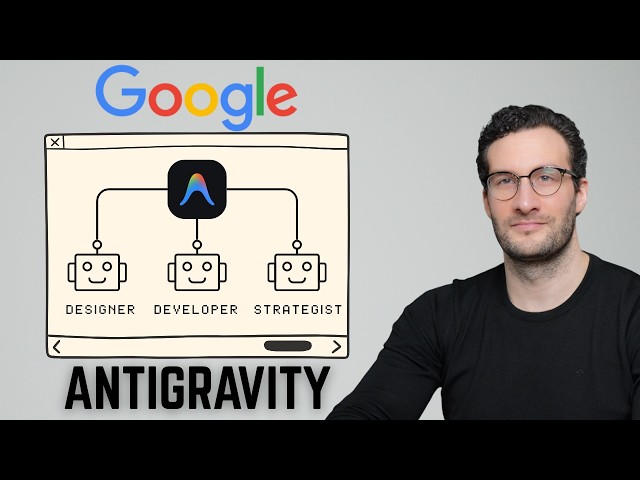
If you’ve been comfortable in VSCode and heard murmurs about Google’s AI-powered IDE called Anti-gravity, you might be wondering what the fuss is about—and whether it’s worth the learning curve. I recently found a fantastic walkthrough by Alex (video embedded below) that breaks down everything you need to know to get started, even if you’ve never touched an AI-powered development environment before.
Here’s what we’ll cover: the interface and how it compares to what you already know, how to prototype an app from scratch, leveraging multi-agent workflows to speed up development, and the safety guardrails you absolutely need to have in place.
The Interface: Familiar Territory with a Twist
When you first download Anti-gravity from anti-gravity.google and install it with the recommended settings, the interface might look overwhelming. But if you’re coming from VSCode, you’ll find the core layout surprisingly familiar.
Anti-gravity has two primary views you need to understand: the Editor View and the Agent Manager.
The Editor View is where you’ll feel most at home. Think of it as three sections working together:
- Right side: Your AI chat panel—similar to how you might use Copilot Chat, but significantly more capable
- Middle: Your code and work display area—exactly like VSCode’s editor pane
- Left side: File explorer and data access—the sidebar you already know
The key difference? That right-hand panel isn’t just suggesting code completions. It’s a full agent that can plan, execute, build, and even test on your behalf. You’ll literally watch it open browsers, run tests, and validate functionality live.
The Agent Manager is where things diverge from traditional IDEs. Access it from the top navigation, and you’ll find a view for coordinating multiple agents working on your project simultaneously. Within the Agent Manager, you have two main spaces:
- Playground: Your sandbox for experimentation when you don’t have a serious project yet
- Workspace: Where your actual projects live, similar to workspaces in Claude or projects in ChatGPT
Configuration: Rules and Workflows
Before you start building, there’s some configuration worth understanding. In the Editor View, you’ll find buttons on the right side that open Customizations and MCP Servers.
Customizations has two tabs that will feel intuitive:
- Rules: This is your personalization layer—equivalent to system prompts or custom instructions in other AI tools. Tell the AI how you want it to communicate. Want concise responses? Say so here. Prefer detailed explanations? Configure it. You can set rules globally (across all workspaces) or per-workspace for project-specific behavior.
- Workflows: These are step-by-step processes for the AI to follow during specific tasks. If you’ve worked with Claude Skills, the concept is identical.
MCP Servers (Model Context Protocol) is where Anti-gravity’s power really shines. MCP allows the AI to communicate with external systems, data sources, and tools. Out of the box, you get integrations for Firebase, GitHub, PayPal, Stripe, and many others. When you need a capability—like connecting to a database or setting up authentication—there’s likely an MCP ready to go.
Building Your First App: From Prompt to Prototype
Let’s walk through actually building something. Alex demonstrates this with an inventory management app, and the process illustrates exactly how Anti-gravity differs from traditional development.
Step 1: Set up your project folder. Click “Open Folder” in the middle pane and select your project directory. Pro tip: always dedicate one folder per project. This makes deployment easier—many hosting services like Netlify let you drag and drop your entire repository.
Step 2: Create your specification. Here’s where Anti-gravity shines for structured work. Instead of typing a massive prompt into the chat (which can overwhelm the AI and consume tokens inefficiently), create a Markdown file in your project. Name it something descriptive like inventory-management.md.
Your specification should follow good prompt engineering structure:
- Persona: Define what the AI should act as (e.g., “full stack engineer and live demo builder”)
- Objective: Main task with subtasks
- Scope: What’s included and excluded
- Details: Data models, features, requirements
- Definition of Done: Clear success criteria
Step 3: Let it build. Simply prompt the chat with something like “build me an inventory management app.” Anti-gravity is smart enough to detect the Markdown file in your project and use it as context.
Here’s where the planning mode matters. In the settings, you can toggle between “Fast” (builds and executes immediately) and “Planning” (proposes a plan for your review first). For anything beyond trivial tasks, use Planning. It keeps you in the loop and lets you adjust before the AI commits to an approach. You can highlight any part of the proposed plan and provide feedback before proceeding.
Step 4: Watch it work. Once you approve the plan, Anti-gravity goes to work. With recommended settings enabled, it will ask permission before executing commands—another human-in-the-loop safeguard. You’ll see it create files, run servers, and even open a separate browser instance to test the application live. That last part is important: it tests in an isolated browser, not your personal one.
Within minutes, you’ll have a working application accessible at a local URL. It won’t be production-ready, but it will be functional—a proper prototype you can click through, test, and iterate on.
Multi-Agent Workflows: Parallel Development
Single-agent workflows are impressive, but Anti-gravity’s multi-agent capability is where development speed really accelerates. Instead of one agent handling everything sequentially, you can deploy multiple agents working concurrently on different aspects of your project.
Open the Agent Manager, and you’ll see you can create multiple chat sessions—one per agent. Each agent can tackle a different task simultaneously.
For example, with the inventory app foundation in place, you might:
- Agent 1: Rework the front-end design with new colors and branding
- Agent 2: Set up Firebase with Firestore for the database and Google/email authentication
- Agent 3: Run competitor analysis to identify feature gaps
Each agent works independently, and you can monitor their progress in parallel. A few practical notes from the walkthrough:
Model selection matters. Different models excel at different tasks. Claude Sonnet works well for backend code generation. Gemini tends to perform better for design-related front-end work. ChatGPT can handle research and analysis tasks effectively. You can select the model per agent based on what they’re doing.
MCP integration is seamless. When Agent 2 needs Firebase, you toggle on the Firebase MCP, install it with one click, and the AI handles the setup. It connects to your Firebase project, sets up Firestore, configures authentication—all guided by your prompts but executed automatically.
Real backend, real auth. The demo shows the app transitioning from SQLite (a local file database that won’t scale) to Firebase with proper Google authentication. After the agent completes its work, you can log into your app with actual Google accounts, and user data persists in a real cloud database.
The Development Cycle: From Prototype to Production
Anti-gravity enables a trimmed-down development cycle that captures essential software delivery principles without heavy process overhead. Here’s the four-step framework:
1. Prototype
- Build the skeleton and core components
- List minimum UI pieces: dashboards, widgets, forms
- Use mock data for fast local testing
- Connect to GitHub for version control (there’s an MCP for that)
2. Productize
- Add a real database (Supabase or Firebase)
- Implement authentication with basic permissions
- Add payment layer if monetizing (PayPal/Stripe MCPs available)
- Handle UX basics: loading states, empty states, error handling, edge cases
- Add minimum legal layer: terms, privacy policy, cookie consent
3. Deploy to Test Environment
- Set up proper secrets and keys
- Deploy to a real URL
- Run end-to-end testing with real services
- Validate third-party integrations
- Test authentication flows and permissions
4. Production Release
- Promote to production
- Monitor real usage
- Identify bugs and enhancement opportunities
- Feed learnings back into the cycle
This loop—prototype, productize, test, release, iterate—remains constant. Anti-gravity accelerates each phase but doesn’t eliminate the need for the phases themselves.
Safety: Non-Negotiable Guardrails
Here’s where VSCode users need to pay attention. In VSCode, your code editor doesn’t autonomously execute commands or modify files. Anti-gravity can and will—that’s its power—but power requires guardrails.
Three failure modes to plan for:
- Destructive commands: Agent misinterprets instructions and runs something harmful on the wrong path
- Scope creep: Agent changes more files than expected without clear review
- Data exposure: Sensitive information gets logged, committed, or shared unintentionally
The rules to live by:
Constrain the blast radius. Use disposable clones or containers for risky tasks. Scope the agent to a single folder when possible. Don’t give it access to your entire machine.
Maintain a safety net. Back up anything you can’t easily recreate. Version control everything. Be able to roll back.
Guardrail auto-execution. This is critical. In settings, you’ll find “Auto Execution” and “Review Policy” options. You can set both to “always proceed” for maximum speed, but don’t. Keep manual approval enabled for any command that deletes, moves, or touches files. The few seconds of review time prevents hours of recovery.
Keep secrets out of prompts. Don’t paste API keys or tokens into chat unless absolutely necessary. Most credentials should be managed through MCPs, not conversation. If you must include sensitive data, build validation steps into your workflows to ensure nothing leaks into logs or commits.
The Bottom Line
For VSCode users, Anti-gravity represents a genuine paradigm shift. You’re not just getting AI code completion—you’re getting an autonomous development partner that can plan, build, test, and iterate. The interface will feel familiar enough that you won’t be lost, but the capabilities demand new habits around review, approval, and safety.
Is it worth learning? If you’re building prototypes, MVPs, or automating workflows, absolutely. The multi-agent workflows alone can compress days of work into hours. But approach it with appropriate caution. Enable the guardrails. Keep human review in the loop. Back up your work.
Anti-gravity is currently free—that may not last. If you’re curious about AI-powered development, now’s the time to experiment. Start with the playground, build something low-stakes, and develop your intuition for what these agents can do before pointing them at anything important.
The future of development isn’t just AI-assisted. It’s AI-partnered. Anti-gravity is Google’s bet on what that looks like.